Bank Statement to CSV Converter: Turn 'Dead' PDFs into Live Data
Let’s be honest: There is nothing more frustrating than receiving a bank statement as a “flat” PDF file.
You can see the numbers. You can read the dates. But you can’t do anything with them.
If you try to copy and paste the transaction table into Excel, you usually end up with a mess of text that takes hours to fix. The dates merge with descriptions, the credits and debits get swapped, and the formatting breaks completely.
This is where a dedicated Bank Statement to CSV Converter changes the game.
If you are looking to automate your bookkeeping and stop the manual typing madness, you are in the right place.
Why “Save as Text” Doesn’t Work
Many people ask, “Can’t I just use Adobe Acrobat to export to Excel?”
You can try, but banks (like Chase, HSBC, or Barclays) format their PDFs for printing, not for data processing. They have headers, footers, page numbers, and legal disclaimers that interrupt the transaction tables.
Standard PDF converters treat these interruptions as part of your data. This results in a CSV file filled with junk rows that you still have to clean up manually.
Our tool is different. It uses AI trained specifically on financial documents to ignore the noise and capture only the data you need: Date, Description, and Amount.
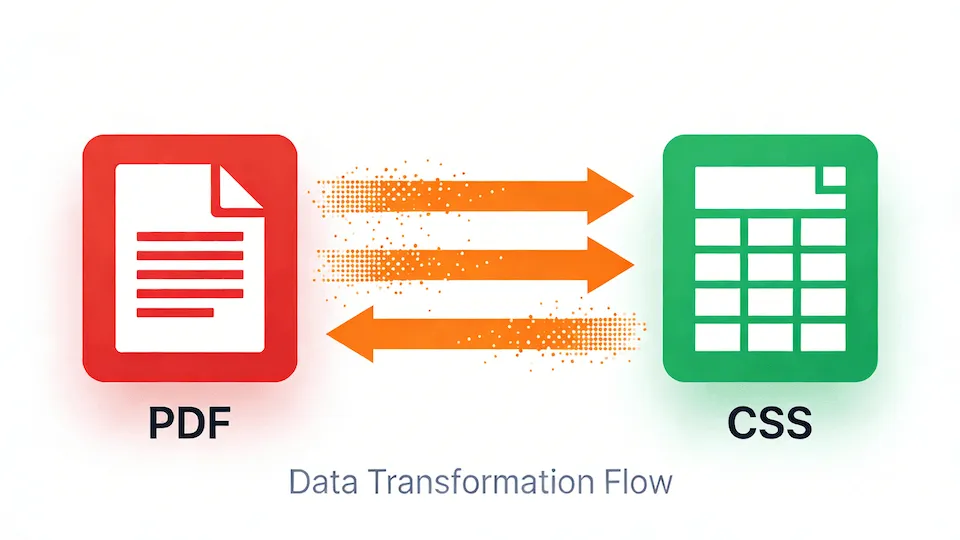
Who Needs a Bank Statement to CSV Converter?
We built this tool for anyone who deals with money and paperwork:
- Accountants & Bookkeepers: You have clients sending you 12 months of PDF statements and expecting you to reconcile them by tomorrow.
- Small Business Owners: You need to import your expenses into QuickBooks, Xero, or Sage, but your bank only lets you download PDFs for older transactions.
- Home Buyers: You need to analyze your income and spending in Excel to prepare for a mortgage application.
How to Convert Your Statement in 3 Steps
Forget about complex software installations. Our tool runs entirely in your browser.
Step 1: Upload Your PDF
Drag and drop your bank statement PDF into the upload box on our homepage. We handle multi-page files effortlessly.
Step 2: The Magic Happens (AI Processing)
Our system analyzes the visual layout of your statement. It identifies where the table starts and ends, separating the transaction details from the bank’s logo and address.
Step 3: Download CSV or Excel
In seconds, you get a clean file.
- Choose CSV if you plan to import the data into accounting software (like Xero or QuickBooks Online).
- Choose Excel (XLSX) if you want to manually edit, filter, or create pivot tables.
Privacy: Your Data Stays Yours
We know that uploading financial documents requires trust. Unlike generic PDF tools that might keep your files on a server, we operate with a strict Privacy-First policy.
- Encryption: Your connection is secured via SSL.
- Auto-Deletion: Your files are permanently deleted from our servers immediately after processing.
- No Human Access: The entire process is automated. No human eyes ever see your bank balance.
Ready to Ditch the Data Entry?
Your time is worth more than typing numbers into a spreadsheet. Whether you have one statement or one hundred, our Bank Statement to CSV Converter is ready to do the heavy lifting for you.