Convert PDF Bank Statement to CSV Free: The No-Headache Way
Let’s face it: There is no task more tedious in bookkeeping than manual data entry.
You have a PDF bank statement in front of you. You need those transactions in your accounting software (like QuickBooks, Xero, or even a simple Excel sheet).
You have two bad options:
- Type it out line by line (and inevitably make a typo).
- Use a generic PDF converter that turns your table into a jumbled mess of text, merging the “Date” and “Description” columns into one unusable block.
If you are searching for a way to convert PDF bank statement to CSV free, you just want a file that works. No credit cards, no software installation, and no broken formatting.
Here is how you can get clean, import-ready CSV files in seconds without spending a dime.
Why “Generic” Converters Fail at Bank Statements
You might wonder, “Why can’t I just use the free export tool in Adobe Reader?”
The problem is that bank statements are not designed for computers to read; they are designed for humans to look at. They are full of visual “noise”:
- Headers and Footers: Repeating on every page.
- Legal Disclaimers: Tiny text at the bottom.
- Multi-column Layouts: Credits and Debits often sitting side-by-side visually but coded strangely in the PDF file.
When you use a general-purpose converter, it tries to grab everything. This results in a CSV file full of junk rows that takes longer to clean up than if you had just typed the data yourself.
You need a tool trained specifically on financial documents.
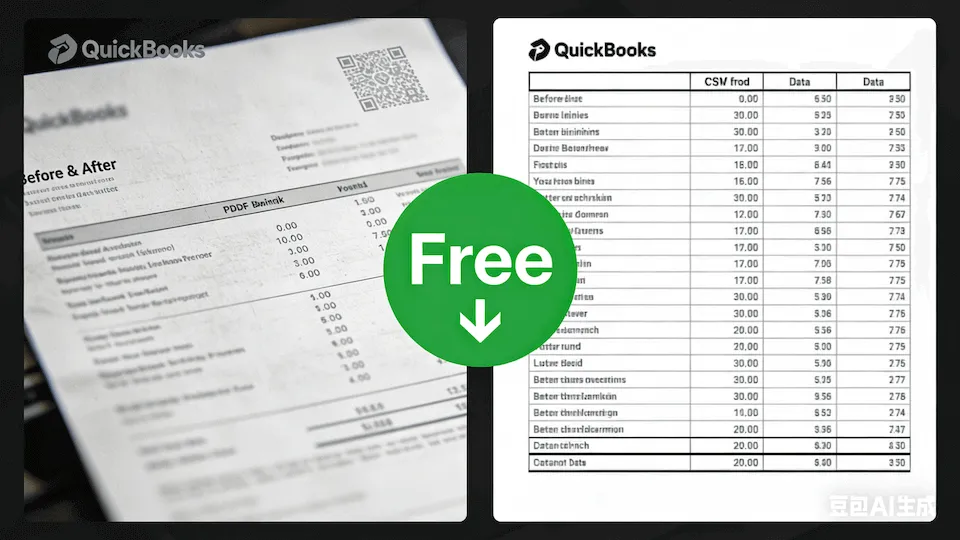
The Solution: A Dedicated, Free CSV Converter
Our tool was built with one specific goal: to recognize transaction tables and ignore the rest.
We understand that you might just need to process a few months of statements for a tax deadline or a loan application. You shouldn’t have to pay a monthly subscription for a 5-minute task.
How to Convert Your PDF in 3 Simple Steps
Here is the exact workflow to turn that “dead” PDF into “live” CSV data:
- Upload Your Statement: Drag your PDF file into the box on our homepage. We support major banks (Chase, BoA, Wells Fargo, etc.) and even scanned images.
- AI Extraction: Our engine automatically identifies the transaction data. It intelligently separates the dates, descriptions, and amounts.
- Download CSV: Select “CSV” as your output format.
That’s it. You now have a file ready to be uploaded directly into Xero, QuickBooks Online, or Sage.
Why “Free” Doesn’t Mean “Unsafe”
When using free online tools, security is a valid concern. Financial data is sensitive.
Unlike many sketchy free sites that store your data to sell or analyze, we operate on a Privacy-First model:
- Local Processing Logic: We use secure, temporary processing.
- Instant Deletion: As soon as you download your CSV, the file is wiped from our processing server. We don’t keep your bank history.
- Anonymous Use: You don’t need to create an account or provide an email address to use the free version.
Stop Typing, Start Analyzing
Time is money. Every minute you spend manually typing dates and amounts is a minute wasted.
Next time you find yourself staring at a PDF and dreading the data entry, remember that there is a better way.
Ready to get your data out of PDF jail?