Bank Statement to Xero Converter: The Missing Link for Your Books
You love Xero. It’s clean, it’s beautiful, and it makes accounting almost fun.
But Xero has one weakness: It hates PDF bank statements.
We’ve all faced this specific headache: The automatic bank feed breaks, or a client hands you a physical stack of paper statements from three years ago. You scan them, upload them to Xero, and… nothing.
Xero allows you to attach a PDF to a transaction, but it cannot read the transaction from the PDF.
This leaves you with the “old school” method: dual monitors, a PDF on the left, Xero on the right, and hours of manual typing.
Stop doing that. There is a bridge that connects your PDF statements directly to your Xero dashboard.
Why Xero Needs a “Translator”
Xero is built to process structured data. It thrives on CSV (Comma Separated Values) files.
A PDF, on the other hand, is designed to look good on paper. It has visual elements—logos, legal fine print, and multi-line descriptions—that look like gibberish to a computer.
If you try to copy-paste PDF text directly into a Xero import template:
- Dates fail: Xero requires specific date formats (like
DD/MM/YYYY). A raw copy-paste often breaks this. - Amounts merge: Credits and Debits often get smashed into a single text string.
- Bank Rules break: If the description column is messy, your pre-set Xero Bank Rules won’t trigger, meaning you still have to manually code every line.
You need a tool that cleans the data before it touches Xero.
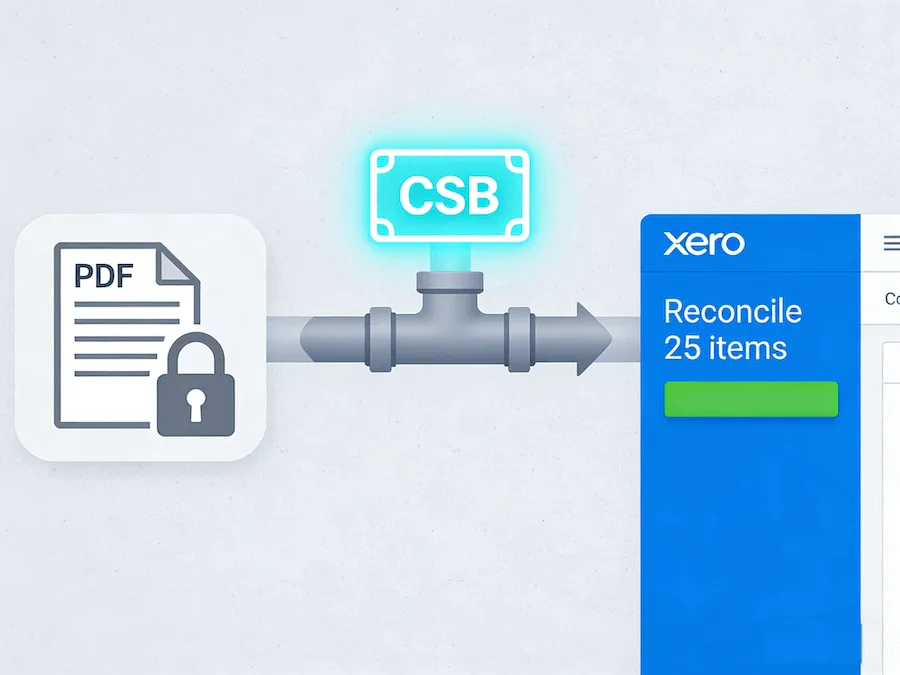
The “PDF to Xero” Workflow
Here is how you can reconcile a 10-page bank statement in under 3 minutes using our Bank Statement to Xero Converter.
Step 1: Upload to Converter
Drag your PDF bank statement into our upload box. We handle statements from thousands of banks globally, so whether it’s Barclays, Chase, or a local credit union, we recognize the layout.
Step 2: Intelligent Extraction
Our AI strips away the “noise.” It ignores the page numbers and the “Intentionally Left Blank” notices. It grabs only the transaction date, details, and amount.
Step 3: Download the “Xero-Ready” CSV
Click download. You now have a clean CSV file.
Step 4: Import into Xero
- Log into Xero and go to Accounting > Bank accounts.
- Find the account you want to update and click Manage Account > Import a Statement.
- Upload the CSV file you just created.
- Map the headers (Xero usually detects them automatically).
Boom. All your transactions appear in the “Reconcile” tab, ready for you to click “OK”.
Accuracy is Everything
When you are importing data into Xero, a single missing decimal point can ruin your reconciliation. You end up hunting for a $0.10 difference for hours.
Our converter is tuned for financial precision:
- Negative Numbers: We correctly identify withdrawals and format them with a negative sign (or separate column) so Xero knows it’s money going out.
- Date Consistency: We standardize dates so Xero doesn’t get confused between January 2nd and February 1st.
Keep Your Xero Clean
Don’t pollute your beautiful accounting software with bad data.
Use a dedicated converter to ensure that every line item you import is clean, accurate, and ready to be reconciled. It’s the closest thing to magic for bookkeepers.