Convert PDF Bank Statement to QuickBooks: Feed Your Accounting Software Fast
You love QuickBooks because it automates your accounting. But there is one thing QuickBooks strictly refuses to do: Read a PDF bank statement.
It happens all the time. A client sends you their monthly statement as a PDF file. You log into QuickBooks Online, go to the “Banking” tab, and look for an upload button.
But you hit a wall. QuickBooks only accepts CSV, QBO, or Excel files for data import. It does not look at PDFs.
If you are searching for “Convert PDF bank statement to QuickBooks”, you are likely trying to avoid the alternative: printing the PDF and typing every single transaction by hand.
Don’t worry. You don’t have to type anything. You just need to translate your PDF into a language QuickBooks understands.
Why QuickBooks Rejects PDFs
To you, a PDF looks like a table of numbers. To QuickBooks, a PDF is essentially a picture.
QuickBooks needs structured data—specifically, it needs to know exactly which text is the “Date,” which is the “Description,” and which is the “Amount.”
A PDF doesn’t have that structure. If you try to force it, or if you use a bad converter, you end up with merged columns. If you try to import a messy CSV into QuickBooks, you’ll get the dreaded “Mapping Error”, where the software can’t figure out where the money went.
The Solution: A “Clean” CSV Bridge
The fastest way to get data from a PDF into QuickBooks is to use a dedicated converter that prepares the data specifically for import.
Our Bank Statement Converter acts as the bridge. It extracts the transaction data from the locked PDF and organizes it into a clean, formatted CSV file that QuickBooks can digest easily.
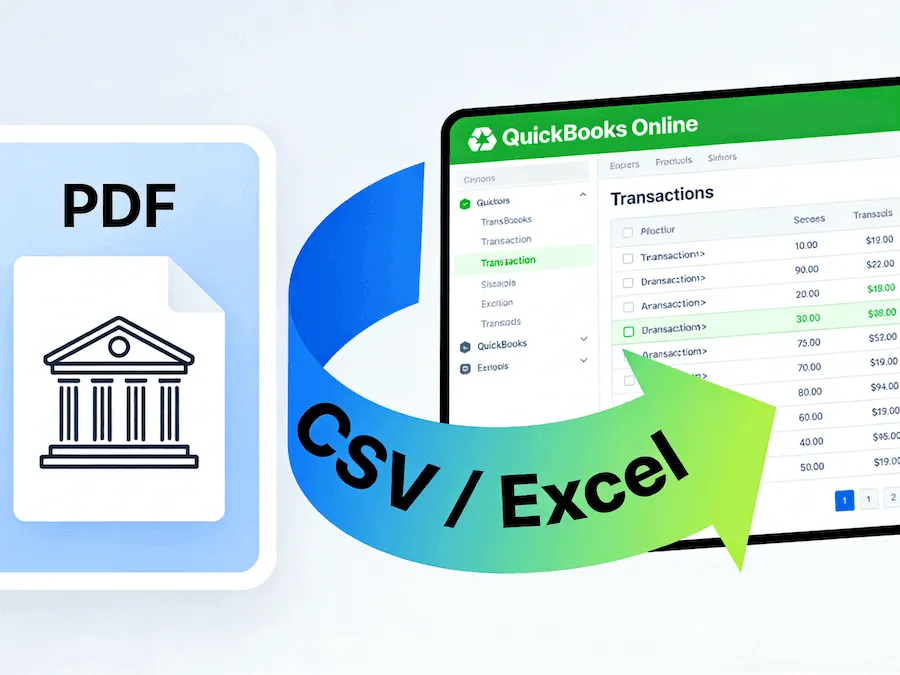
Workflow: From PDF to QuickBooks in 3 Minutes
Here is the exact process to update your books without manual entry:
Step 1: Convert the PDF
Drag and drop your bank statement PDF into our upload box. Our AI will scan the document, remove the headers and footers, and extract the transaction table.
Step 2: Download as Excel/CSV
Download the result as a CSV or Excel file.
- Tip: We recommend checking the file in Excel quickly to ensure the dates are formatted correctly, although our AI usually handles this automatically.
Step 3: Import to QuickBooks
Now, go to your QuickBooks Online dashboard:
- Navigate to Bookkeeping > Transactions > Bank transactions.
- Click the arrow next to “Link account” and select Upload from file.
- Select the CSV file you just downloaded from our tool.
- Map the columns (Date to Date, Description to Description, Amount to Amount).
Because our tool produces a clean table, the mapping step is instant. QuickBooks will recognize the columns immediately.
Compatible with All Versions
Whether you are using QuickBooks Online, QuickBooks Desktop, or even QuickBooks Self-Employed, the requirement is the same: clean data.
Our tool works with statements from all major banks (Chase, Wells Fargo, BoA, etc.) and prepares them for any version of the software.
Stop Fighting with File Formats
Accounting is hard enough without having to fight with file compatibility.
Stop treating PDF statements like dead ends. Convert them into live data and get your reconciliation done in record time.